How to Connect Calendly + Stripe + Zoom for Automated Discovery Calls
Step-by-step guide to setting up a fully automated discovery call pipeline — client books, pays, and gets a Zoom link without you touching anything.


The discovery call is the most important conversion moment in your coaching business. It’s also one of the most commonly broken.
A client fills out your contact form. You email back. They reply with their availability. You check your calendar. You propose a time. They confirm. You send a Zoom link. They ask how to pay. You send a Stripe link. They pay. You manually move them to your client folder.
This back-and-forth takes 3-5 days and loses 30-50% of potential clients who lose momentum or go with a coach who made it easier to book.
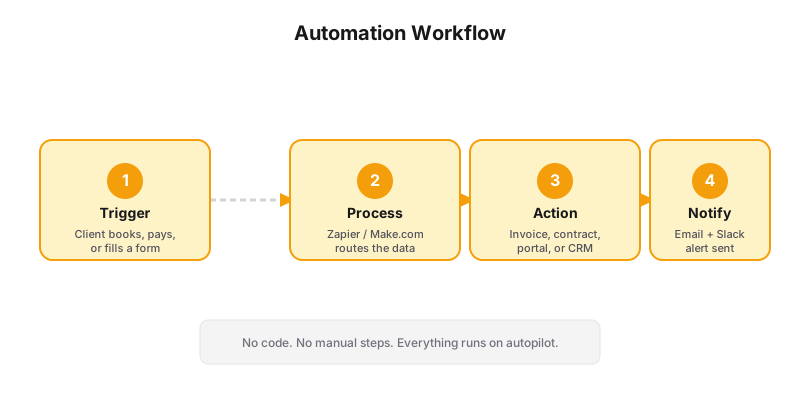
Here’s how to eliminate every manual step — client books, pays, and gets their Zoom link automatically.
What You’ll Need
- Calendly (Standard plan, $12/month — workflows required)
- Stripe (Free — 2.9% + $0.30/transaction)
- Zoom (Free for 40-min calls / Pro $16/month for unlimited)
Setting up this integration on a custom site? A Generativity Media site has this built in. Keep reading if you want the DIY version.
Step 1: Connect Stripe to Calendly
Calendly’s Standard plan includes Stripe integration for collecting payment at the time of booking. Here’s how to set it up:
- In Calendly: Go to Integrations → Stripe → Connect
- Authorize: Log into your Stripe account and authorize Calendly to create payment links
- Set up payment: In your Discovery Call event type, go to “Payment” → toggle on “Collect payment” → enter your discovery call fee or deposit amount
Important: This collects payment before the appointment is confirmed. If payment fails, the appointment doesn’t book. This eliminates no-shows.
Pro tip: Don’t charge the full program fee at the discovery call stage. Charge a nominal amount ($25-50) or a fully refundable deposit. The goal is to qualify serious leads, not to maximize revenue at this stage. Full payment collection happens in your onboarding flow.
Step 2: Connect Zoom to Calendly
- In Calendly: Go to Integrations → Zoom → Connect
- Authorize: Log into your Zoom account and authorize Calendly
- Select account: Choose which Zoom account to use (if you have multiple)
- Location: In your Discovery Call event type, set “Location” to Zoom
- Configuration: Choose “Generate a unique Zoom link for each event” — this creates a new meeting for every booked call
Calendly automatically embeds the Zoom link in the calendar invite and confirmation email. The client doesn’t need to install anything.
Step 3: Create the Workflow
This is the most powerful part. Calendly Workflows (available on Standard plan) automate everything that happens after a booking.
- In Calendly: Go to Workflows → Create Workflow → Select your Discovery Call event type
- Trigger: “Event is booked” — runs when the client successfully books AND pays
Add these actions in order:
Action 1: Send confirmation email to client
- Template: Custom
- Include: Zoom link, prep worksheet link, what to expect, your phone number for emergencies
Action 2: Send notification to you
- Template: “New discovery call booked — [client name], [date/time]. Intake responses: [answers].”
Action 3: (Optional) Send SMS reminder to client
- 24 hours before the call
- Include Zoom link
Action 4: (Optional) Create a Stripe invoice for the full program fee
- If you want to send a payment link after the call rather than collecting at booking
Step 4: Test the Full Flow
Before sharing your booking link publicly, run a test:
- Open an incognito window
- Click your Calendly booking link
- Select a time slot
- Fill out the form (use a test email you control)
- Enter test payment info (Stripe test card: 4242 4242 4242 4242)
- Complete the booking
- Check: Did you receive the confirmation email? Did it include the Zoom link? Did the calendar invite appear? Was the payment processed?
Fix any issues before sharing the link.
| Step | Action | Tool | What Happens |
|---|---|---|---|
| 1 | Client picks a time | Calendly | Checks availability |
| 2 | Client pays deposit | Stripe (via Calendly) | Payment collected |
| 3 | Zoom link generated | Zoom | Unique link created |
| 4 | Confirmation sent | Calendly | Email with links + receipt |
| 5 | Reminder | Calendly | 24hr + 1hr auto-reminders |
The Automated Pipeline
When everything is connected, this is what happens:
- Client clicks your booking link from anywhere — website, email, social bio
- They see your availability in their time zone
- They select a time and fill out intake questions embedded in the booking flow
- They enter payment info — Stripe processes it, Calendly confirms the booking
- They receive a confirmation email with the Zoom link, prep worksheet, and calendar invite
- You receive a notification with their name, contact info, and intake responses
- 24 hours before: They get an SMS reminder with the Zoom link
- You show up and coach. That’s all you do.
When This Isn’t Enough
This setup works for solo coaches with one discovery call type. It breaks down when you need:
- Multiple call types (discovery, sales, consultation)
- Different pricing per call type ($50 discovery, $100 strategy session)
- Conditional intake (show different questions based on answers)
- Team booking (route calls to different coaches)
- Custom branding (the booking happens on Calendly’s domain, not yours)
For those scenarios, you need booking built into your own website. With a Generativity Media site, the discovery call pipeline — scheduling, payment, intake, Zoom — is integrated into your domain. No Calendly subscription, no client redirects, no branding mismatch.
The Launch plan includes Stripe-integrated booking with automated Zoom links and confirmation emails. Clients book on your site, pay on your site, and get their Zoom link — all without a separate Calendly subscription.
Troubleshooting
“Payment isn’t showing up in Stripe” — Check that the payment connection in Calendly is active. Go to Integrations → Stripe → Reconnect (sometimes the auth token expires).
“Zoom link isn’t generating” — Disconnect and reconnect Zoom in Calendly integrations. Make sure your Zoom account isn’t in a “meeting limit” state.
“Confirmation email isn’t sending” — Check your Calendly workflow is active (not paused) and that the email template is complete (no missing required fields).
“Client says they booked but I don’t see it” — Have them check their spam folder for the confirmation. If it’s not there, the booking may not have completed on their end. Send them your link again.
“I need to charge more than the discovery call deposit” — Use the discovery call to sell your program, then send a Stripe payment link or invoice after the call. Or redirect them to your website’s checkout page for automated onboarding and payment collection.
The booking link is plumbing. The call still needs a discovery script. Onboarding is why they stay.
Want the version where this is all built into your website with no separate subscriptions? Let’s talk.