Notion for Coaches: The Complete Step-by-Step Setup Guide
Turn Notion into your coaching business command center — client database, content calendar, session notes, and more. No templates, just a system you build yourself.


Most coaches use Notion as a dumping ground — a page where they throw random notes, links, and ideas, then never look at them again.
Used properly, Notion can replace 4-5 separate tools in your coaching business: your client database, content calendar, session notes, project tracker, and resource library. All in one place. All searchable. All connected.
This guide walks through setting up a coaching operations system in Notion. Not a template to copy (though you can), but a framework to build so it fits your business.
The Core Structure
Your Notion workspace needs six databases, connected by relations and rollups:
- Clients — Every client, past and present
- Sessions — Every session you’ve conducted
- Content — Every piece of content (planned, in progress, published)
- Tasks — Everything you need to do
- Resources — Worksheets, guides, recordings
- Notes — Business ideas, insights, learning
These six databases form the backbone of your coaching operations.
| Database | Purpose | Key Properties | Default View |
|---|---|---|---|
| Clients | Client profiles and status | Name, email, package, start date | Table |
| Sessions | Session log and notes | Date, client, notes, action items | Calendar |
| Content | Content calendar | Title, status, format, due date | Board (Kanban) |
| Tasks | Business tasks | Task, assignee, priority, deadline | Board (Kanban) |
| Resources | Templates and assets | Type, link, tags, usage | Gallery |
| Notes | General notes and ideas | Category, date, source | List |
Database 1: Clients
This is your CRM. Every client gets a record here.
Columns:
- Name (title)
- Status (select: Active / Paused / Completed / Past)
- Package (select: 10-session / 6-session / Monthly / Custom)
- Start Date (date)
- Sessions Count (rollup from Sessions database)
- Next Session (date — linked to Sessions)
- Email (text)
- Notes (text — quick context about this client)
- Tags (multi-select: VIP / referral / scholarship / etc.)
View: Create a “Active Clients” filtered view that shows only Status = Active. Sort by Next Session ascending.
Database 2: Sessions
Every session gets logged here. This replaces handwritten notes and scattered documents.
Columns:
- Session Title (title — format: “[Client Name] — Session [Number]”)
- Client (relation to Clients database)
- Date (date)
- Focus Area (select — based on your coaching categories)
- Key Insights (text)
- Action Items (text)
- Next Session Prep (text)
- Status (select: Complete / Cancelled / Rescheduled)
View: Create a “Upcoming Sessions” filtered view. Create a “Session History” view grouped by Client to see a client’s entire journey.
Database 3: Content
Your editorial calendar lives here.
Columns:
- Title (title)
- Type (select: Blog Post / Email / Social Post / Video / Podcast)
- Status (select: Idea / Drafting / Scheduled / Published)
- Platform (multi-select: LinkedIn / Instagram / Twitter / Email / Blog)
- Publish Date (date)
- Topic (select — based on your content pillars)
- Link (URL — published URL)
- Notes (text)
View: “Content Calendar” — calendar view by Publish Date. “Ideas Backlog” — table view filtered to Status = Idea, sorted by creation date.
Database 4: Tasks
Your to-do list for the business, not client sessions.
Columns:
- Task (title)
- Status (select: To Do / In Progress / Done)
- Due Date (date)
- Category (select: Admin / Marketing / Content / Client / Finance)
- Priority (select: Low / Medium / High / Urgent)
View: “This Week” — filtered view showing tasks due this week. “Priority” — sorted by Priority, filtered to not done.
Database 5: Resources
Your library of worksheets, guides, templates, and recordings.
Columns:
- Title (title)
- Type (select: Worksheet / Guide / Recording / Template / Article)
- Topic (multi-select)
- Link (URL — Google Drive or cloud storage link)
- Used With (relation to Clients — track which clients received this)
- Notes (text)
View: “By Topic” — grouped by Topic. Quick access during sessions when you need to find a specific worksheet.
Database 6: Notes
Business ideas, insights from reading, conference notes, random thoughts.
Columns:
- Title (title)
- Category (select: Business Idea / Learning / Insight / Reference)
- Source (text — book title, podcast name, conversation)
- Actionable? (checkbox)
The key insight here is that Notion’s power comes from connecting these databases. A client record shows all their sessions. A session record links to the client. A resource shows which clients received it.
The Daily Dashboard
Create a main dashboard page that shows:
- Upcoming sessions (linked view from Sessions, filtered to this week)
- Priority tasks (linked view from Tasks, filtered to High/Urgent)
- Content to publish this week (linked view from Content)
- Quick actions: “Log a session” (button that opens a new session form), “Add a task” (button that opens a new task form), “Capture an idea” (button that opens a new note form)
This dashboard is the first thing you see when you open Notion. It replaces checking five different tools.
The Workflow
Here’s how this system works in practice:
Before a session: Open the client’s record. Review notes from the last session (visible right there). Note what you want to cover.
After a session: Click “Log a session” on your dashboard. Fill in the form (it auto-links to the client). Done.
Content planning: Monthly review of your Content database. Move ideas to “Drafting.” Produce them. Move to “Published.” Done.
Weekly review: Open your dashboard. Review upcoming sessions and priority tasks. Plan the week.
When Notion Isn’t Enough
Notion is a great tool for coaches with 5-15 clients. Beyond that, the limitations become painful:
- No native scheduling — You still need Calendly or Acuity
- No payment processing — You still need Stripe
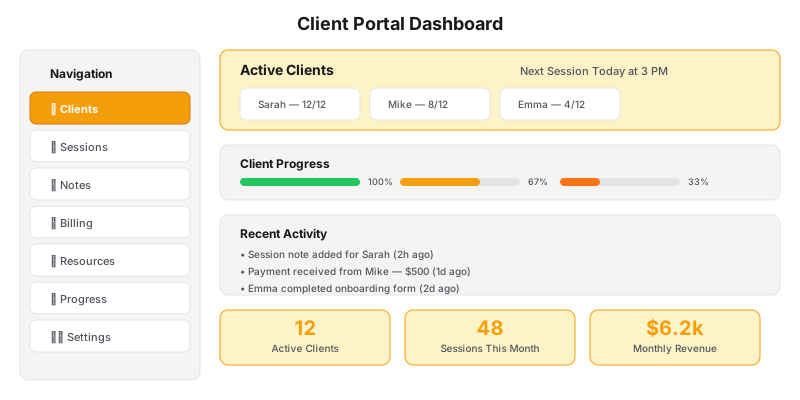
- No client portal — Sharing individual pages works but isn’t a polished client experience
- No automations — Manual data entry for every session, task, and content piece
When you outgrow Notion, the next step is a custom coaching system where scheduling, client management, content, payments, and delivery all live on your website — linked, automated, and branded to you.
A Grow plan includes everything Notion does (client tracking, session notes, content calendar) plus scheduling, payments, portal access, and Content Brain — all integrated, none of the manual data entry.
Notion is a tray. Progress tracking and the portal are how it serves the hour.
Want a system that doesn’t require manual database management? Let’s talk about a custom solution.